



|
|

Description
This screen enables you to create or edit a manual shipping method. Shipping methods will be filtered on checkout based on the limitations you set for each shipping method. Then, they will be displayed to the user for him to choose which shipping method he prefers for his order.
Toolbar

- Save & Close : Save the shipping method options and return to the shipping methods Management screen.
- Save : Apply the modifications to the shipping method and stay on the same screen.
- Cancel : Return to the previous screen without saving the modifications.
Main Information
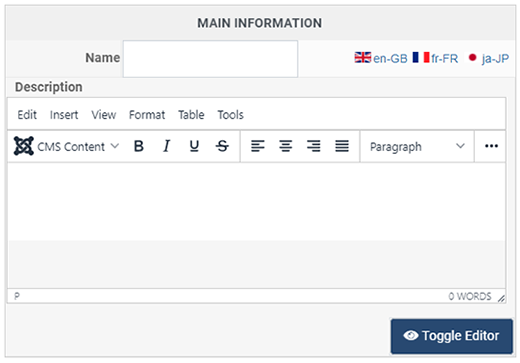
If you use one of our commercial versions, you will be able to enter the name and description in different languages. This requires a multilingual setup and can be activated in the HikaShop configuration page, in the Languages tab. The languages available will be the ones installed in Joomla. If you don't enter a translation for a given language, the default information in the Main information tab will be used instead. After you click on save, an additional publish icon will appear next to the fields where you entered a translation so that you can easily enable or disable them.
Generic configuration
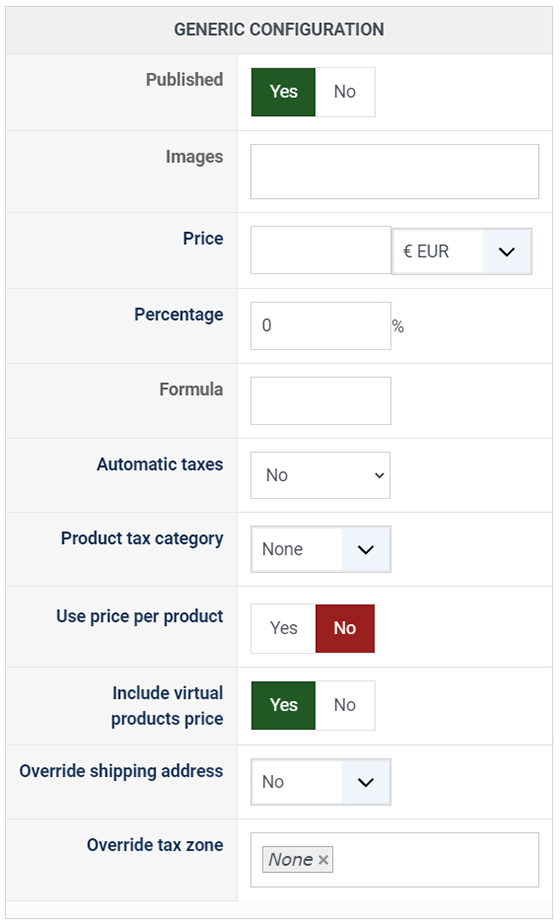
- Published: If a shipping method is published it means that it can be used by your customers during the checkout.
- Images: You can click on the edit icon to select one or several images to display next to the name of the shipping method during the checkout process. Those images are stored in the folder media/com_hikashop/images/shipping so you can easily add more of them by uploading your images to this folder via FTP or via the Media manager.
- Price: The fixed base price for the shipping method. You can also select the currency to use for this price.
- Percentage: Additionally to the price, you can set here a percentage of the total of the order's products. The resulting amount will be added to the fixed price. For example, if you set a price of 5 and a percentage of 10%, and the customer orders products totaling 100, the shipping cost will be 5 + (100 * 10 / 100) = 15.
- Formula: A custom mathematical expression for dynamic shipping cost calculation. You can use the following variables: {price} (cart products total), {weight} (total weight), {volume} (total volume), {quantity} (total number of items). For example: {weight} * 2 + {quantity} * 0.5. The formula result replaces the fixed price and percentage calculation. Standard mathematical operators (+, -, *, /) and parentheses can be used.
- Automatic taxes: Determines how taxes are applied to the shipping fee. Four options are available:
- No: Taxes are not automatically calculated. You need to select a tax category manually (see below).
- Proportion (default): The tax rate is calculated as a weighted average of the tax rates of the products in the cart. For example, if you have one product costing 20 with a tax of 10% and another one costing 80 with a tax of 20%, the shipping tax rate will be (20/100) * 10% + (80/100) * 20% = 18%.
- Highest rate: The highest tax rate among the cart products is applied to the shipping fee.
- Lowest rate: The lowest tax rate among the cart products is applied to the shipping fee.
- Product Tax category: This option only appears when "Automatic taxes" is set to "No". You can select here a tax category that will apply to the shipping fee. The tax rules configured in System > Taxes will be used based on that tax category.
- Use the prices per product: When activated, the price per product system is enabled for this shipping method. Two things will happen:
- A "Price per product" field will appear on this screen where you can configure a default per-product shipping cost. This amount is multiplied by the quantity of each product and added to the base shipping price.
- A "Price per product mode" dropdown will appear with two options: Sum (default, adds all product shipping prices together) or Highest (uses only the highest product shipping price).
- If you have activated the "HikaShop Shipping manual - Prices per product" plugin in the Joomla plugin manager, you will be able to configure a specific shipping price for each individual product on the product edit page, overriding the default per-product price.
- Include virtual products price: Whether virtual/downloadable products are included in the shipping price calculations (percentage, formula, and per-product). By default, this follows the global "Force shipping module display" setting in the HikaShop configuration.
- Override shipping address: Allows you to replace the customer's shipping address display with a custom address or message. This is useful for "Pick up at store" methods. The available options are:
- No: Uses the customer's shipping address normally.
- Store address: Uses the store's default address.
- Hide: Hides the shipping address entirely during checkout.
- Text version: Displays a custom text message instead of the address (plain text, line breaks are converted to <br/>).
- HTML version: Displays a custom HTML message instead of the address.
- Override tax zone: You can select a zone here. When a shipping method with this option is selected by the customer, the zone used to calculate taxes for the entire order will be the zone selected here instead of the zone derived from the customer's address. This is useful for "Pick up at store" shipping methods where the applicable taxes should be based on the store's location, not the customer's address.
Restrictions
You can set restrictions on shipping methods. Based on the products in the cart of the user, the system will calculate which shipping methods the customer can choose from.
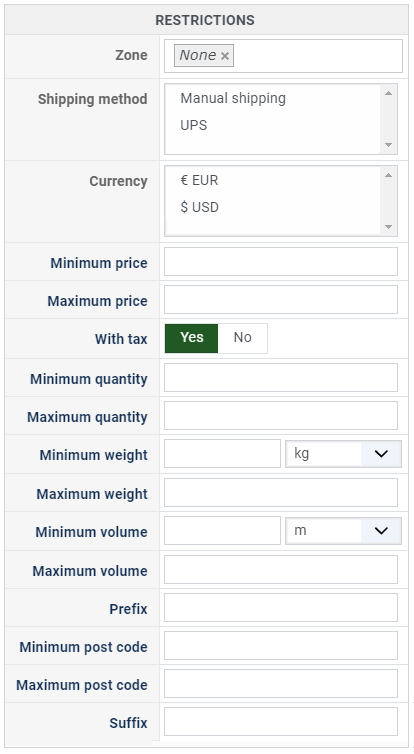
- Zone: You can restrict a shipping method to a zone. By clicking on the edit icon, a popup will open enabling you to select a zone. Only customers with a shipping address in the selected zone (or its sub-zones) will see this shipping method. You can remove this limitation by clicking on the delete icon.
- Warehouse: You can restrict the shipping method to one or more warehouses. You can also choose whether the filter is inclusive ("Only these warehouses") or exclusive ("All except these warehouses") using the radio buttons next to the selector.
- Minimum price: The shipping method will only be available for orders with a product total above this minimum price.
- Maximum price: The shipping method will only be available for orders with a product total below this maximum price.
- Include virtual products price: If you activate this option, the price of virtual goods (products without weight) is taken into account for the maximum and minimum price restrictions above as well as the percentage price calculation. Otherwise, only physical goods (with a weight) are taken into account.
- With tax: When enabled, the minimum and maximum price restrictions use the product prices including taxes. When disabled, they use the prices excluding taxes. Enabled by default.
- Minimum quantity: The minimum number of items in the cart for this shipping method to be available. The quantity is calculated as the sum of the quantity of each product in the cart.
- Maximum quantity: The maximum number of items in the cart for this shipping method to be available.
- Minimum weight: The minimum total weight of the cart for this shipping method to be available. The weight is calculated as the sum of each product's weight multiplied by its quantity. You can select the weight unit next to this field.
- Maximum weight: The maximum total weight of the cart for this shipping method to be available.
- Minimum volume: The minimum total volume of the cart for this shipping method to be available. The volume is calculated from the width, height and length of each product multiplied by its quantity. You can select the volume unit next to this field.
- Maximum volume: The maximum total volume of the cart for this shipping method to be available.
- Post code RegEx: A regular expression to match against the customer's postal code. Only customers whose postal code matches the expression will see this shipping method. For example, ^(75|92|93|94) to match postal codes starting with 75, 92, 93, or 94.
- Prefix: You can restrict the shipping method to only postal codes starting with this prefix.
- Min. postal code: You can restrict the shipping method to only postal codes within a numeric range, whereby this is the minimum value.
- Max. postal code: The maximum value of the postal code numeric range.
- Suffix: You can restrict the shipping method to only postal codes ending with this suffix.
Access Level
You can restrict which Joomla user groups can see and use this shipping method. By default, the shipping method is available to all user groups. Select specific groups to limit access. This is useful if you want to offer specific shipping options only to certain customer groups (e.g. wholesale customers, VIP members).

